Review your PloverCRM profile and update the information that appears in the mobile app and CRM workspace.
Open your profile #
- Open PloverCRM.
- Tap Settings.
- Under Account, tap Profile.
- Wait for your profile information to load.
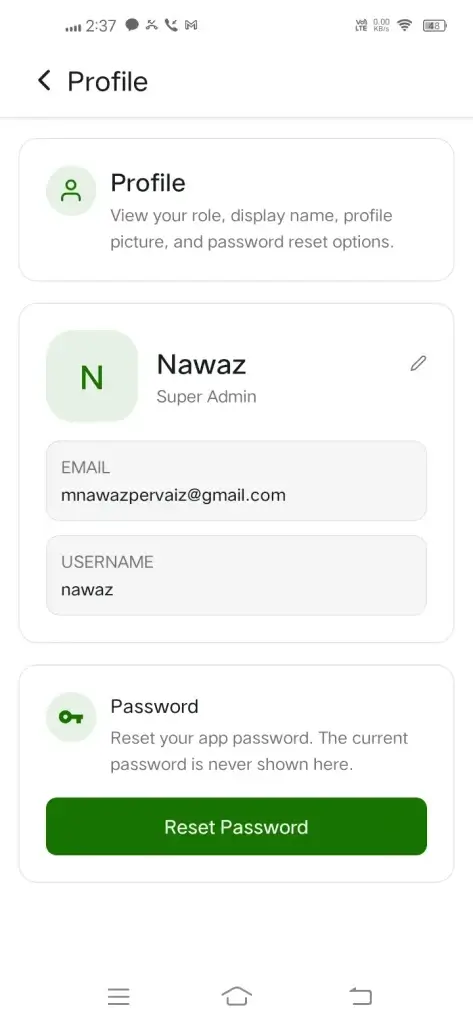
Review profile information #
The Profile screen can show:
- Display name.
- Role or CRM access level.
- Email address.
- Username.
- Profile picture.
- Password reset options.
Some information is read-only and may be managed by your workspace administrator.
Change your display name #
- Open Profile.
- Tap the edit control beside your display name.
- Enter the new name.
- Tap Save.
Your display name cannot be empty. If you leave it blank, PloverCRM shows Display name is required.
Add or change your profile picture #
- Open Profile.
- Tap your profile picture or initials.
- Choose Upload Photo or Change Photo.
- Allow photo library access if your device asks.
- Select and crop the picture.
- Wait for the upload to finish.
If a profile picture is not available, PloverCRM shows initials based on your profile information.
Remove your profile picture #
- Tap your profile picture.
- Choose Remove Photo.
- Review the confirmation message.
- Tap Remove.
Warning: Removing a profile picture changes the picture associated with your profile. Tap Cancel if you do not want to remove it.
Reset your password from your profile #
- Open Profile.
- In the Password section, tap Reset Password.
- Review the confirmation message.
- Tap Reset only when you are ready to replace the current password.
- Copy the new password while it is displayed.
- Use the new password the next time you sign in.
The current password is not shown. The new password is displayed temporarily on the Profile screen, and PloverCRM can show Password copied after you copy it.
For sign-in recovery, see Change or Reset Your Password.
If your profile is read-only #
Your role may allow you to view your profile without changing it. When this happens, PloverCRM explains that your role can view the profile but cannot edit it. Contact your workspace administrator if your profile information needs to be changed.
Troubleshooting #
The profile does not load
Confirm that a workspace is selected, then return to Settings and open Profile again. If the problem continues, refresh the workspace data.
Photo library access is required
Allow PloverCRM to access your device photo library before selecting a picture. If you do not want to grant access, cancel the upload.
The display name will not save
Enter a non-empty display name and try again. If the save still fails, review the error shown by PloverCRM and contact your workspace administrator.


