Reset the password used to connect PloverCRM Mobile to your workspace when you cannot use the current password or need a replacement.
Reset your password from Profile #
- Open PloverCRM.
- Tap Settings.
- Tap Profile.
- In the Password section, tap Reset Password.
- Read the confirmation message.
- Tap Reset to replace the current password.
- Copy the new password shown on the screen.
PloverCRM can show Resetting… while the request is processing. After it succeeds, the new password is shown temporarily and the saved workspace connection is updated.
Warning: Resetting your password replaces the current password immediately. The current password is not shown on this screen. Do not reset it unless you are ready to use the new password.
Use the new password #
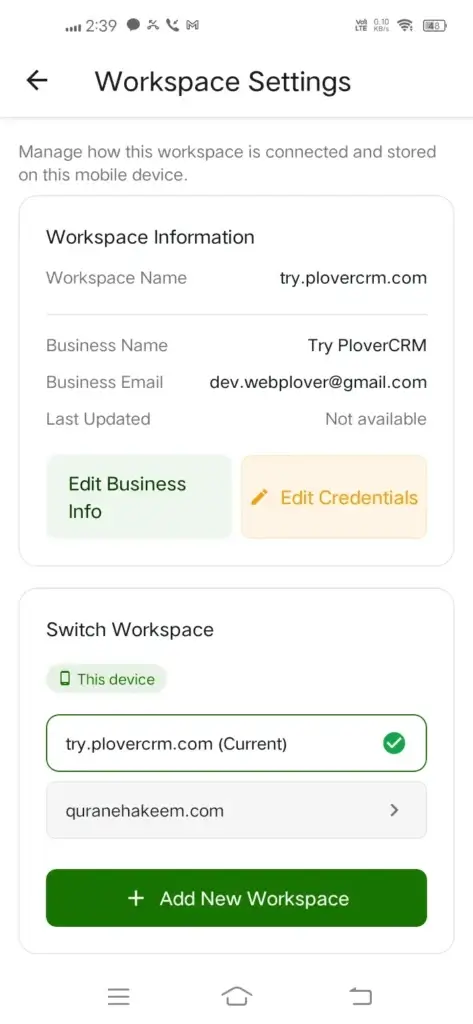
Use the new password when you sign in again or reconnect the saved workspace. If PloverCRM asks you to update the saved credentials, open Workspace Settings, choose Edit Credentials, and save the new password.
If you cannot sign in #
- Open the PloverCRM sign-in screen.
- Use the password recovery option shown on the screen, if available.
- Follow the recovery instructions.
- Return to the app and sign in with the updated password.
If the sign-in screen does not provide a recovery option, contact your site administrator to confirm the correct workspace credentials.
Troubleshooting #
The reset action is unavailable
Your role may not have permission to reset the password. Ask your workspace administrator to review your profile access.
The new password is no longer visible
The new password is shown temporarily. If you did not copy it, run the reset again and copy it before leaving the screen.
The workspace cannot reconnect after a reset
Open Manage Workspaces, edit the saved credentials, enter the new password, use Test Connection, and tap Save Changes.
Password reset fails
Review the message shown by PloverCRM and try again. If the problem continues, contact your site administrator rather than sharing your password with anyone.


