Skip to content
PloverCRM logo PloverCRM
  • Home
  • Pricing
  • Documentation
  • Changelog
  • Account
Get PloverCRM Sign in
Sign in Get PloverCRM

Getting Started

9

Mobile App

50
  • Setup & Account
    • Reset Your Mobile App Password
    • Create a PloverCRM Account and Log In
    • Reset Your Workspace Password in the Mobile App
    • Download and Install the PloverCRM Mobile App
  • Navigation & Dashboard
    • Dashboard
    • Mobile App Navigation
  • Lead List & Filters
    • Use Bulk Actions
    • Adjust the Leads Table Zoom
    • All Leads Screen Overview
    • Use Advanced Lead Filters
    • Filter Leads with List Pills
    • Search for Leads and Understand Search Results
    • Customize Lead Columns
    • Filter Leads with Advanced Search in the Mobile App
  • Lead Management & Activities
    • Share a Lead and Add It to Your Phone Book
    • Update the Lead Stage or Status
    • Enter and Validate Lead Information
    • Manage Lead Reminders
    • Understand Additional Lead Information
    • Add a New Lead
    • View Lead Details
    • Add Activities and Notes
    • Review the Activity and Timeline Tab
    • Use Lead Communication Actions
    • Review and Merge Duplicate Leads in the Mobile App
    • Edit Lead Information in the Mobile App
    • Delete Leads in the Mobile App
  • Settings & Workspaces
    • Settings Overview
    • Customize Notification Alerts
    • Change the App Theme
    • Manage Workspaces
    • Manage Phone Validation
    • Manage Lead Actions
    • Configure Notifications
    • Refresh Workspace Data in Mobile
    • Manage Pipeline Stages in the Mobile App
    • Update Your Profile in the Mobile App
    • Create and Manage Message Templates in the Mobile App
    • Update Business Information in the Mobile App
  • Updates & Troubleshooting
    • Troubleshoot Phone Validation
    • Check for Mobile App Updates
    • Troubleshoot Mobile Login
    • Troubleshoot Mobile Notifications
    • Upcoming Mobile App Features
    • Troubleshoot Data Refresh
    • Use Help and Account Support
    • Request a Feature from the Mobile App
    • View Advocate Campaigns and Rewards in the Mobile App
    • View Release Notes and Updates in the Mobile App
    • Troubleshoot Workspace Connections in the Mobile App

Automations

7

Leads & Pipeline

30

Integrations & Data

15

Settings & Customization

18

Team & Workspaces

11

Help & Troubleshooting

18
View Categories
  • Home
  • Docs
  • Mobile App
  • Lead List & Filters

Filter Leads with Advanced Search in the Mobile App

1 min read

0:00 / 1:26
  • View as Markdown Open this page as plain Markdown (opens in a new tab)
  • Open in ChatGPT Ask questions about this page (opens in a new tab)
  • Open in Claude Ask questions about this page (opens in a new tab)
  • Open in Google AI Studio Ask questions about this page (Google account required) (opens in a new tab)

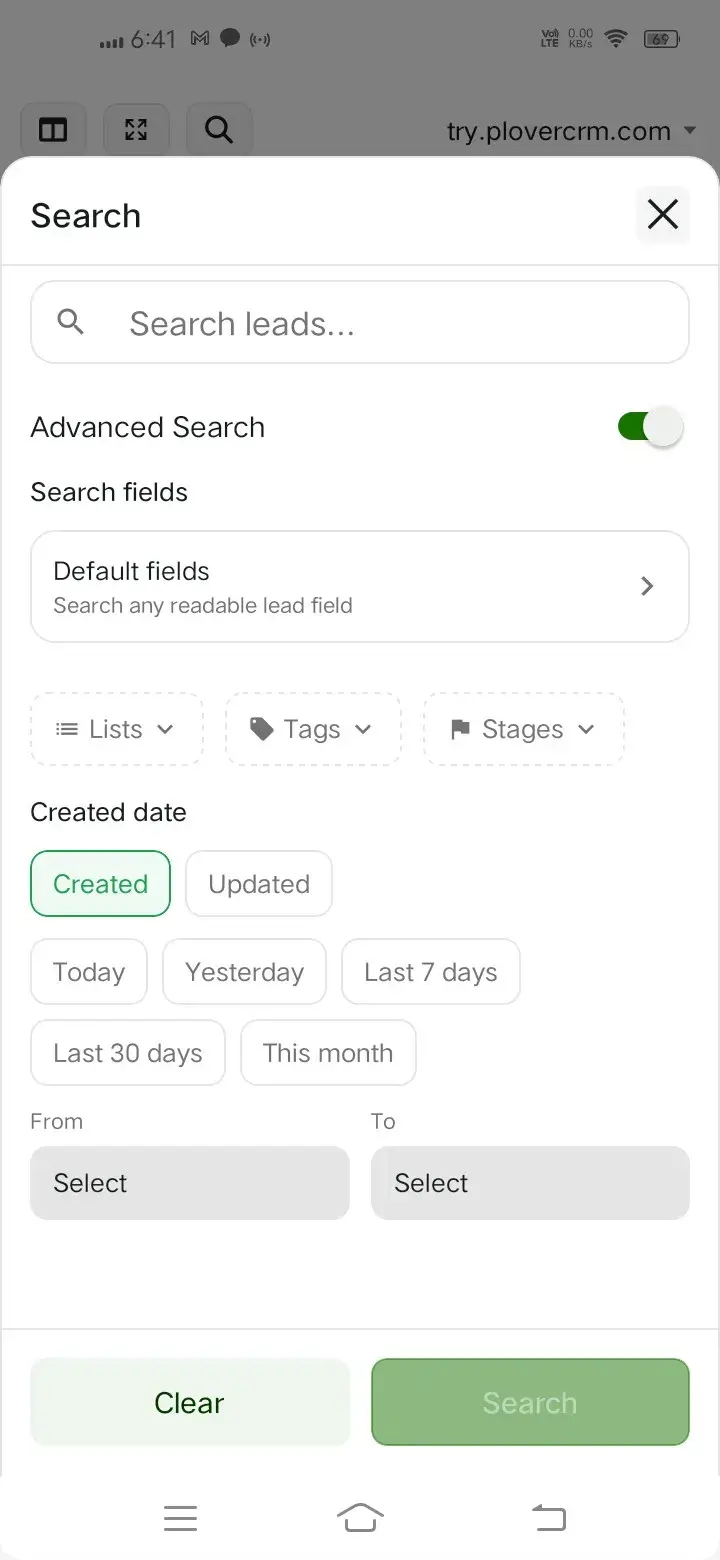
Use Advanced Search to filter leads by fields, lists, tags, pipeline stages, and created or updated dates. You can combine several filters in one search.

Open Advanced Search #

  1. Open All Leads.
  2. Tap the search icon.
  3. Turn on Advanced Search.
Screenshot 2026 1027 184203 1 - Plover CRM

Select fields to search #

  1. Tap Search fields.
  2. Use Find a field… to locate a field.
  3. Select the fields you want to search.
  4. Use Select all or Clear when appropriate.
  5. Tap Apply.

PloverCRM groups available fields and can include standard lead fields, custom fields, and Lead ID.

Filter by lists, tags, or stages #

  1. In Advanced Search, tap Lists, Tags, or Stages.
  2. Search within the selection dialog if needed.
  3. Select one or more values.
  4. Tap Done.

Selected values are shown on the filter control and in the active-filters area after the search is applied.

Filter by date #

  1. In Advanced Search, choose Created or Updated.
  2. Select a preset such as Today, Yesterday, Last 7 days, Last 30 days, or This month.
  3. To specify a custom range, choose a From date and a To date.
  4. Enter a text query if needed.
  5. Tap Search.

You can use date filters without entering search text.

Screenshot 2026 1027 184203 - Plover CRM

Apply the filters #

  1. Review the selected fields and filter values.
  2. Tap Search.
  3. Review the result count and active filter chips above the lead table.

Clear advanced filters #

  • Tap Clear in the Search panel to remove all search text and filters.
  • Tap the close icon on an individual active filter to remove only that filter.
  • Tap Clear all above the results to return to the unfiltered lead list.
Updated on November 3, 2026
Custom Fields Lead Filters Lead Lists Lead Search Lead Stages Mobile

What are your Feelings

  • Happy
  • Normal
  • Sad

Share This Article :

  • Facebook
  • X
  • LinkedIn
  • Pinterest
Customize Lead ColumnsUse Bulk Actions
Table of Contents
  • Open Advanced Search
  • Select fields to search
  • Filter by lists, tags, or stages
  • Filter by date
  • Apply the filters
  • Clear advanced filters
PloverCRM

Plover CRM helps businesses manage leads, automate workflows, and strengthen customer relationships.

Get it on Google Play Download on the App Store

Quick Links

  • Documentation
  • Multi-Workspace Web App
  • Data Deletion Policy
  • Changelog
  • News and Articles
  • Terms of Service
  • Privacy Policy

Contact Support

Request FeaturePublic Roadmap Open TicketSupport Portal

Copyright © 2026 WebPlover - Developed by WebPlover