Skip to content
PloverCRM logo PloverCRM
  • Home
  • Pricing
  • Documentation
  • Changelog
  • Account
Get PloverCRM Sign in
Sign in Get PloverCRM

Getting Started

9

Mobile App

50
  • Setup & Account
    • Reset Your Mobile App Password
    • Create a PloverCRM Account and Log In
    • Reset Your Workspace Password in the Mobile App
    • Download and Install the PloverCRM Mobile App
  • Navigation & Dashboard
    • Dashboard
    • Mobile App Navigation
  • Lead List & Filters
    • Use Bulk Actions
    • Adjust the Leads Table Zoom
    • All Leads Screen Overview
    • Use Advanced Lead Filters
    • Filter Leads with List Pills
    • Search for Leads and Understand Search Results
    • Customize Lead Columns
    • Filter Leads with Advanced Search in the Mobile App
  • Lead Management & Activities
    • Share a Lead and Add It to Your Phone Book
    • Update the Lead Stage or Status
    • Enter and Validate Lead Information
    • Manage Lead Reminders
    • Understand Additional Lead Information
    • Add a New Lead
    • View Lead Details
    • Add Activities and Notes
    • Review the Activity and Timeline Tab
    • Use Lead Communication Actions
    • Review and Merge Duplicate Leads in the Mobile App
    • Edit Lead Information in the Mobile App
    • Delete Leads in the Mobile App
  • Settings & Workspaces
    • Settings Overview
    • Customize Notification Alerts
    • Change the App Theme
    • Manage Workspaces
    • Manage Phone Validation
    • Manage Lead Actions
    • Configure Notifications
    • Refresh Workspace Data in Mobile
    • Manage Pipeline Stages in the Mobile App
    • Update Your Profile in the Mobile App
    • Create and Manage Message Templates in the Mobile App
    • Update Business Information in the Mobile App
  • Updates & Troubleshooting
    • Troubleshoot Phone Validation
    • Check for Mobile App Updates
    • Troubleshoot Mobile Login
    • Troubleshoot Mobile Notifications
    • Upcoming Mobile App Features
    • Troubleshoot Data Refresh
    • Use Help and Account Support
    • Request a Feature from the Mobile App
    • View Advocate Campaigns and Rewards in the Mobile App
    • View Release Notes and Updates in the Mobile App
    • Troubleshoot Workspace Connections in the Mobile App

Automations

7

Leads & Pipeline

30

Integrations & Data

15

Settings & Customization

18

Team & Workspaces

11

Help & Troubleshooting

18
View Categories
  • Home
  • Docs
  • Mobile App
  • Settings & Workspaces

Create and Manage Message Templates in the Mobile App

2 min read

0:00 / 1:47
  • View as Markdown Open this page as plain Markdown (opens in a new tab)
  • Open in ChatGPT Ask questions about this page (opens in a new tab)
  • Open in Claude Ask questions about this page (opens in a new tab)
  • Open in Google AI Studio Ask questions about this page (Google account required) (opens in a new tab)

Create and manage reusable message templates for email and SMS communication from lead details.

Open Message Templates #

  1. Open PloverCRM.
  2. Tap Settings.
  3. Under App preferences, tap Lead Details.
  4. Under Message Templates, tap Manage Templates.
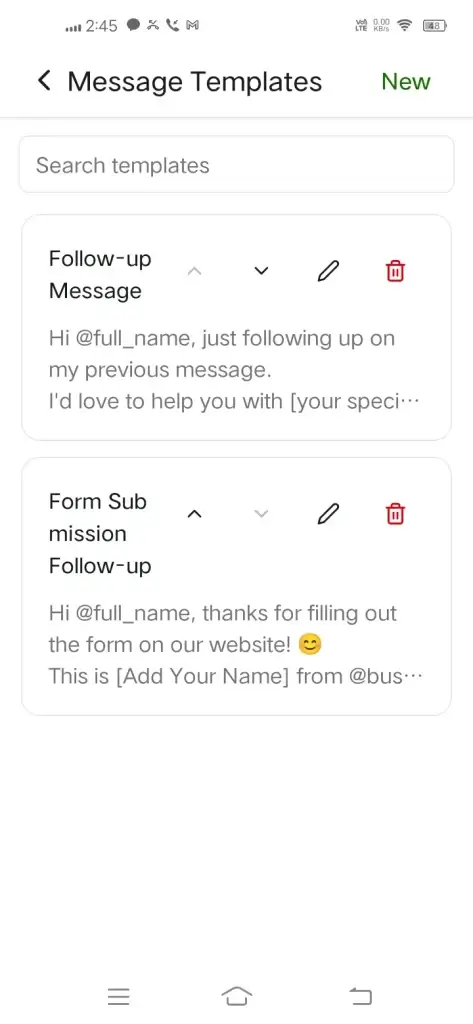
Screenshot 20261028 144505 - Plover CRM

Find a template #

Enter text in Search templates to search template titles and message content. Clear the search field to return to the full list.

Create a template #

  1. Open Message Templates.
  2. Tap New.
  3. Enter the template title and message content.
  4. Save the template using the controls shown by PloverCRM.

The new template appears in the template list after it is saved.

Edit or view a template #

  1. Tap the edit control for a template.
  2. Update the title or message content when you have edit permission.
  3. Save the changes.

If you can view but not edit templates, the control is shown as a view option instead.

Reorder templates #

  1. Clear the search field.
  2. Use the up or down controls beside a template.
  3. Repeat until the templates are in the order you want.

Templates cannot be reordered while a search is active. PloverCRM can show Clear search to reorder templates.

Use a template from a lead #

When a template is opened with lead information available:

  1. Review the rendered message preview.
  2. Tap Use Template.
  3. Review the message before sending it.

Delete a template #

  1. Tap the delete control for the template.
  2. Review the confirmation dialog.
  3. Tap Delete only when you are certain.

Warning: Deleting a template removes it from the workspace template list. Confirm that you no longer need it before choosing Delete.

Permissions and troubleshooting #

Templates are unavailable

Your role may not have access to message templates. Ask your workspace administrator to review your permissions.

The New button is missing

You may have view-only access. Only teammates with template-management permission can create, edit, reorder, or delete shared templates.

No template matches the search

Try a shorter search term or clear the search field to view all templates.

Updated on November 3, 2026
Message Templates Messaging Mobile Workspaces

What are your Feelings

  • Happy
  • Normal
  • Sad

Share This Article :

  • Facebook
  • X
  • LinkedIn
  • Pinterest
Update Your Profile in the Mobile AppUpdate Business Information in the Mobile App
Table of Contents
  • Open Message Templates
  • Find a template
  • Create a template
  • Edit or view a template
  • Reorder templates
  • Use a template from a lead
  • Delete a template
  • Permissions and troubleshooting
PloverCRM

Plover CRM helps businesses manage leads, automate workflows, and strengthen customer relationships.

Get it on Google Play Download on the App Store

Quick Links

  • Documentation
  • Multi-Workspace Web App
  • Data Deletion Policy
  • Changelog
  • News and Articles
  • Terms of Service
  • Privacy Policy

Contact Support

Request FeaturePublic Roadmap Open TicketSupport Portal

Copyright © 2026 WebPlover - Developed by WebPlover