Use Advanced Search to filter leads by fields, lists, tags, pipeline stages, and created or updated dates. You can combine several filters in one search.
Open Advanced Search #
- Open All Leads.
- Tap the search icon.
- Turn on Advanced Search.
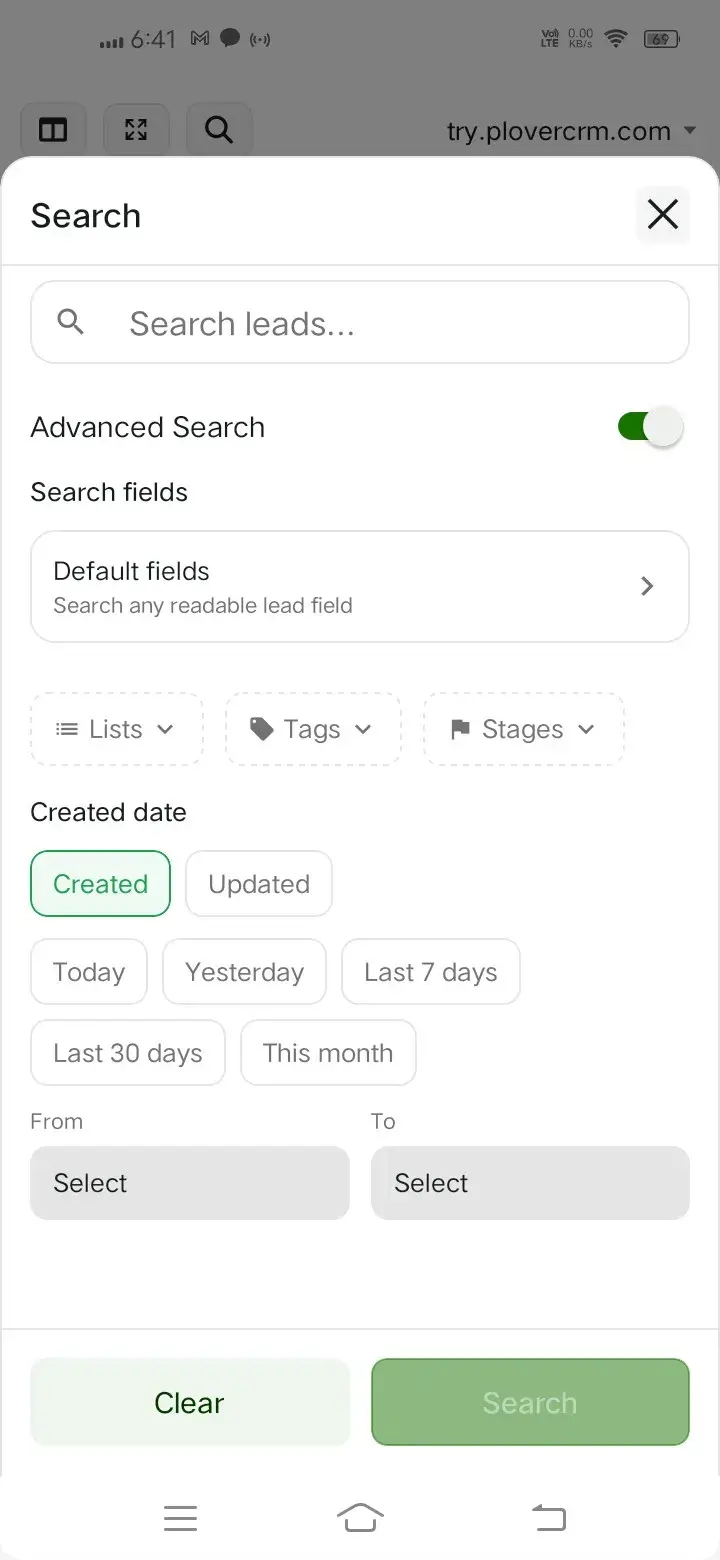
Select fields to search #
- Tap Search fields.
- Use Find a field… to locate a field.
- Select the fields you want to search.
- Use Select all or Clear when appropriate.
- Tap Apply.
PloverCRM groups available fields and can include standard lead fields, custom fields, and Lead ID.
Filter by lists, tags, or stages #
- In Advanced Search, tap Lists, Tags, or Stages.
- Search within the selection dialog if needed.
- Select one or more values.
- Tap Done.
Selected values are shown on the filter control and in the active-filters area after the search is applied.
Filter by date #
- In Advanced Search, choose Created or Updated.
- Select a preset such as Today, Yesterday, Last 7 days, Last 30 days, or This month.
- To specify a custom range, choose a From date and a To date.
- Enter a text query if needed.
- Tap Search.
You can use date filters without entering search text.

Apply the filters #
- Review the selected fields and filter values.
- Tap Search.
- Review the result count and active filter chips above the lead table.
Clear advanced filters #
- Tap Clear in the Search panel to remove all search text and filters.
- Tap the close icon on an individual active filter to remove only that filter.
- Tap Clear all above the results to return to the unfiltered lead list.


