Review possible duplicate leads and combine them when you are authorized to do so. Merging removes one of the two lead records, so review every choice carefully.
Review a possible duplicate #
- Open the lead’s Lead Details screen.
- Review the Possible duplicate notice when it appears.
- Tap Review.
- Wait for the duplicate lead details to load.
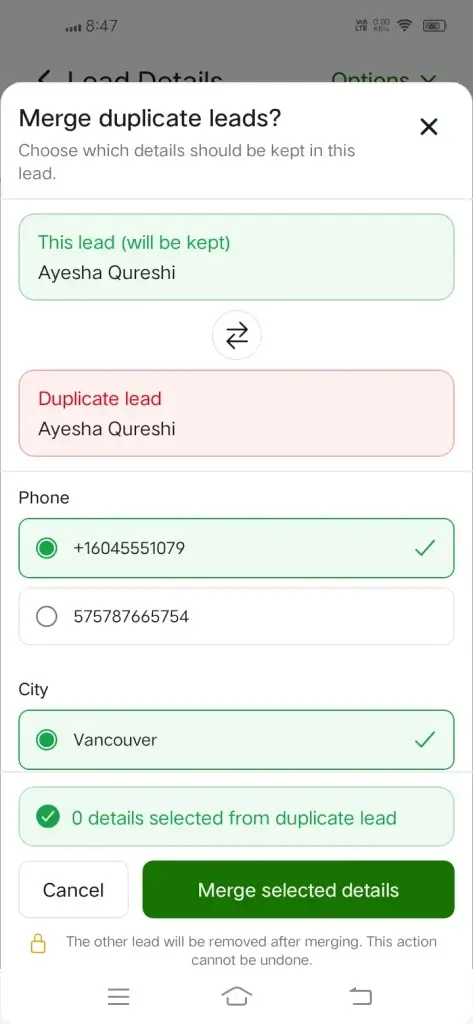
PloverCRM opens Merge duplicate leads? and identifies one record as This lead (will be kept) and the other as Duplicate lead.
Choose which details to keep #
- Compare the two lead records.
- For each field shown, select the value that should be kept.
- Use the swap control if the other lead should be kept instead.
- Review the count of details selected from the duplicate lead.
- Tap Merge selected details only after reviewing the selections.
If there are no fields requiring a choice, PloverCRM can show No details need your review.
Confirm the destructive action #
Merging is permanent. PloverCRM warns:
The other lead will be removed after merging. This action cannot be undone.
Do not merge records unless you have confirmed that they belong to the same person or organization and that the selected details are correct.
What happens next #
PloverCRM combines the selected details into the lead being kept and removes the other lead. Related records that can be preserved are moved to the resulting lead. PloverCRM then opens the resulting lead details.
Troubleshooting #
The duplicate review is unavailable
Your role may not have permission to merge leads, or no possible duplicate may currently be available. Ask a workspace administrator to confirm your access.
The duplicate lead cannot be loaded
Tap Try again in the merge review. If the lead changed while you were reviewing it, close the review and open it again from the current lead details screen.
The merge fails
Review the error shown by PloverCRM. Do not retry repeatedly if the lead information has changed; reload both records and review the choices again.


