
Overview #
Get PloverCRM running in 5 minutes! Create your first contact and set up a form integration.
Time Required: 5-10 minutes
Prerequisites:
- ✅ PloverCRM installed and activated
- ✅ License activated
- ✅ WordPress admin access
Step 1: Choose CRM Provider (1 minute) #
- Go to PloverCRM → Settings → General
- Under CRM Provider, select:
- PloverCRM (recommended for new users)
- FluentCRM (if you already have it)
- Click Save Changes

Step 2: Create First Contact (2 minutes) #
- Go to PloverCRM → Contacts → Add New Contact
- Fill in:
- Email: [email protected] (required)
- First Name: John
- Last Name: Doe
- Phone: +1 234 567 8900
- Stage: New
- Click Publish or Save Contact
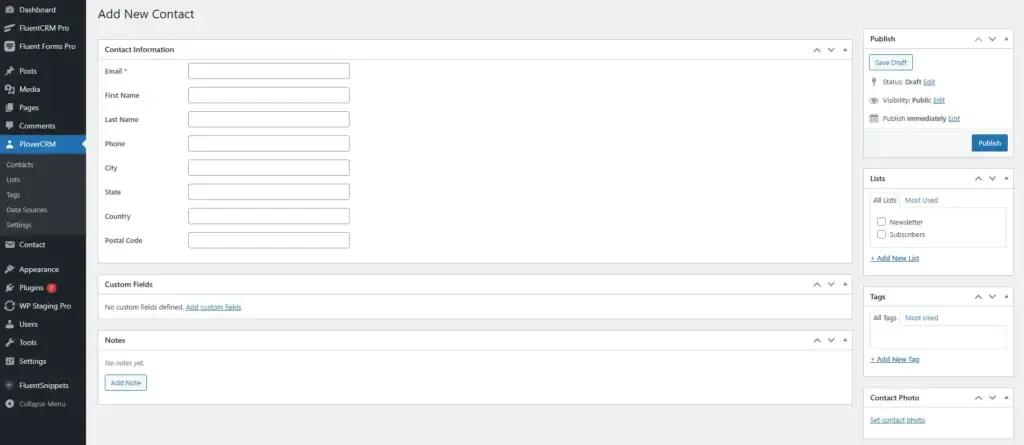
✅ First contact created!
Step 3: Create a List (1 minute) #
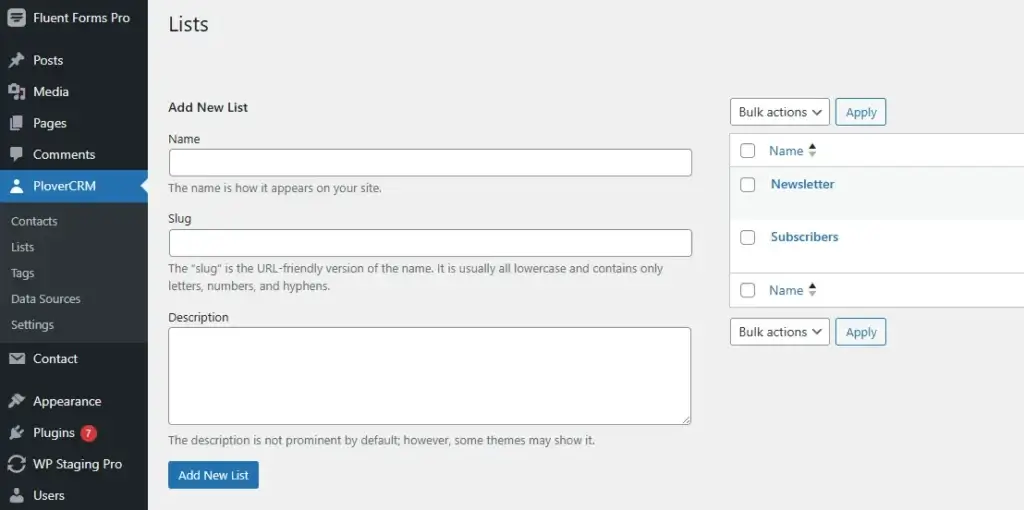
- Go to PloverCRM → Lists → Add New List
- Enter name: “Newsletter Subscribers”
- Click Add New List
Step 4: Add Contact to List (30 seconds) #
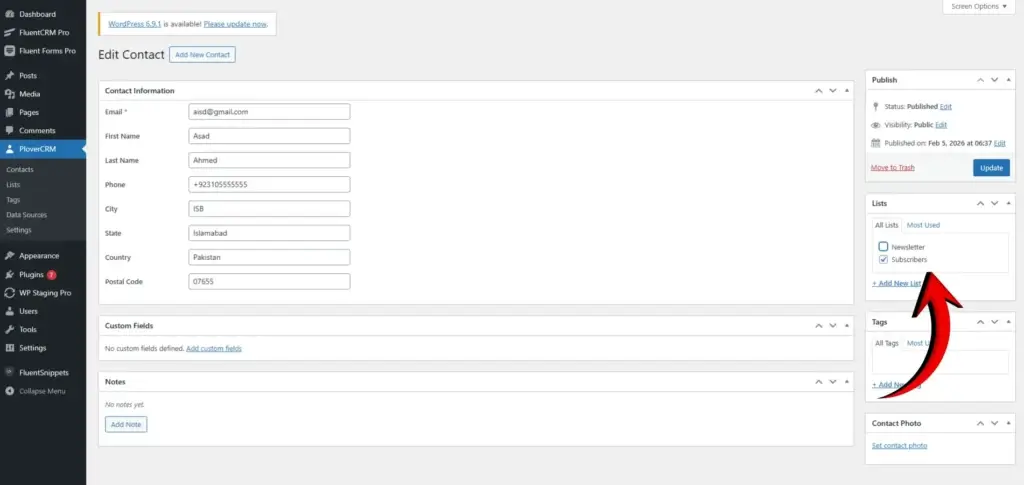
- Go to Contacts, click your contact
- In right sidebar, find Lists
- Check “Newsletter Subscribers”
- Click Update
Step 5: Set Up Form Integration (3 minutes) #
For Contact Form 7: #
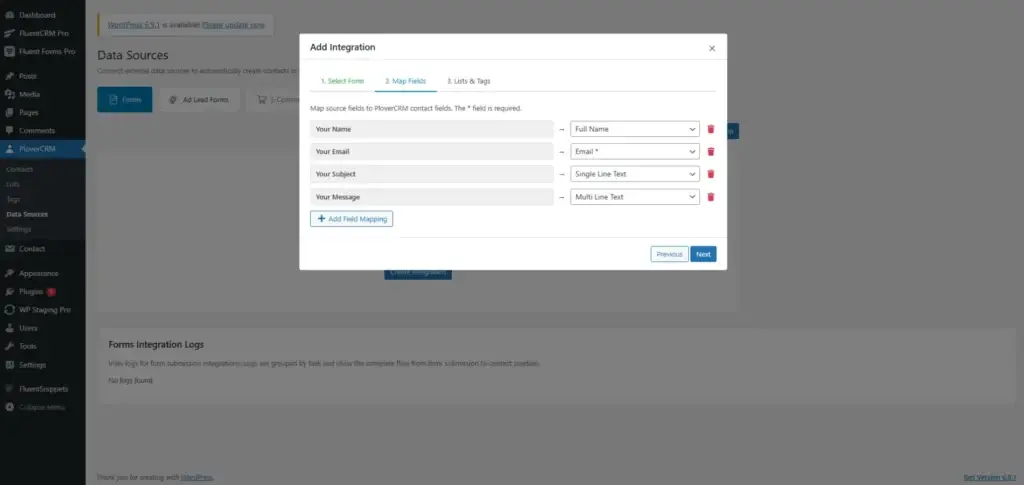
- Go to PloverCRM → Data Sources → Add New Integration
- Category: Forms
- Provider: Contact Form 7
- Form: Select your form
- Map Fields:
- Form Email → CRM Email
- Form Name → CRM First Name
- List: Newsletter Subscribers
- Stage: New
- Click Save Integration
Test Integration: #
- Submit your contact form
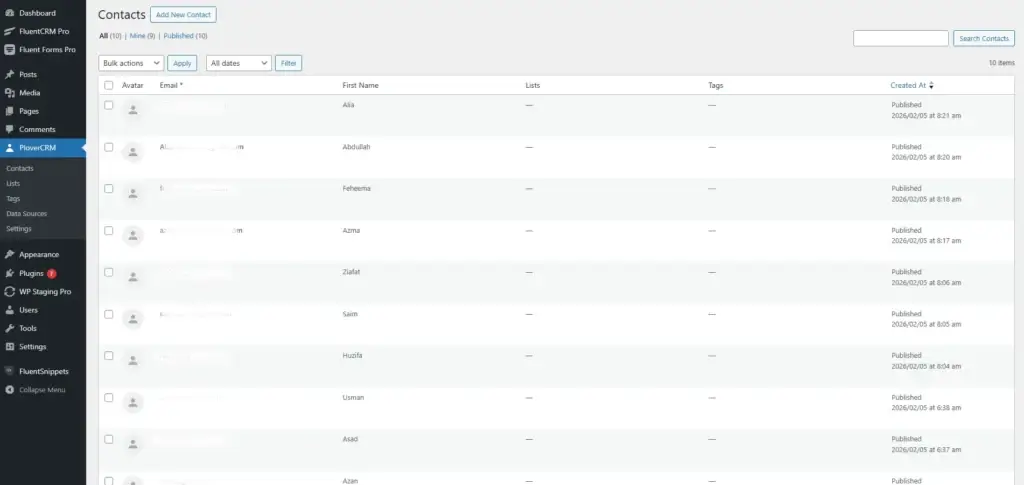
- Go to PloverCRM → Contacts
- Verify new contact created
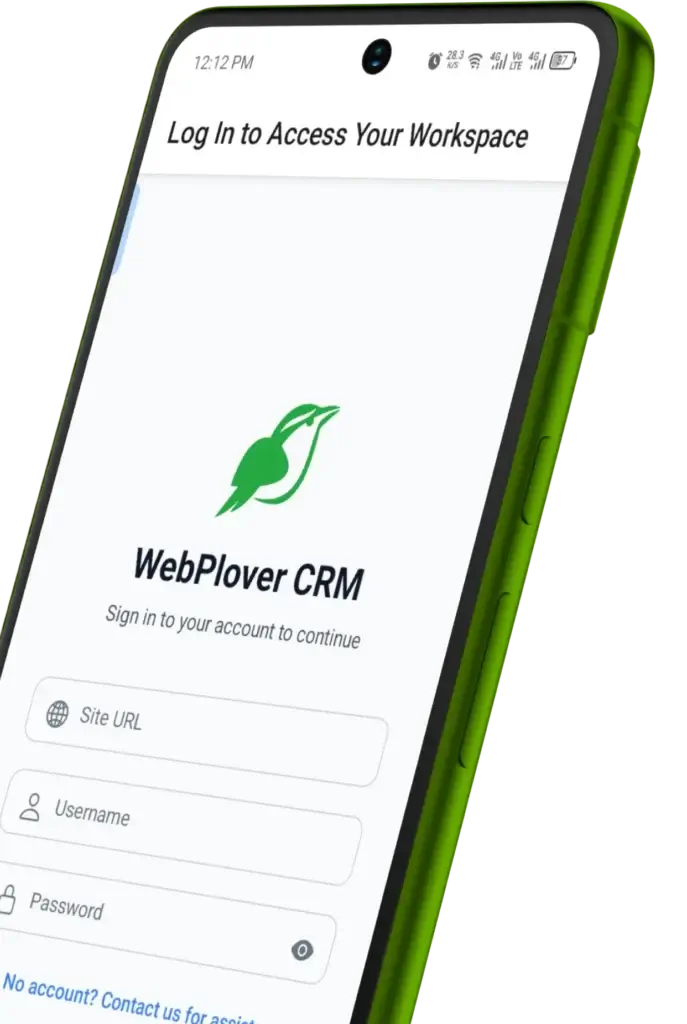
Step 6: Mobile App (Optional – 5 minutes) #
Next Steps #
Learn Core Concepts:
Set Up More:
Team Management:
FAQ #
Q: Can I import existing contacts?
A: Yes! See Importing Contacts from CSV
Q: How do I add custom fields?
A: See Creating Custom Fields
Q: Can multiple team members use PloverCRM?
A: Yes! See Roles and Permissions
Congratulations! 🎉 You’re ready to use PloverCRM.


