This guide explains how to use manage tags while keeping the selected workspace, record, and result in view.
The names of buttons and sections can vary with your PloverCRM plan, permissions, connected services, and current version. When a label differs, use the matching label displayed in your account and do not change an unrelated setting.
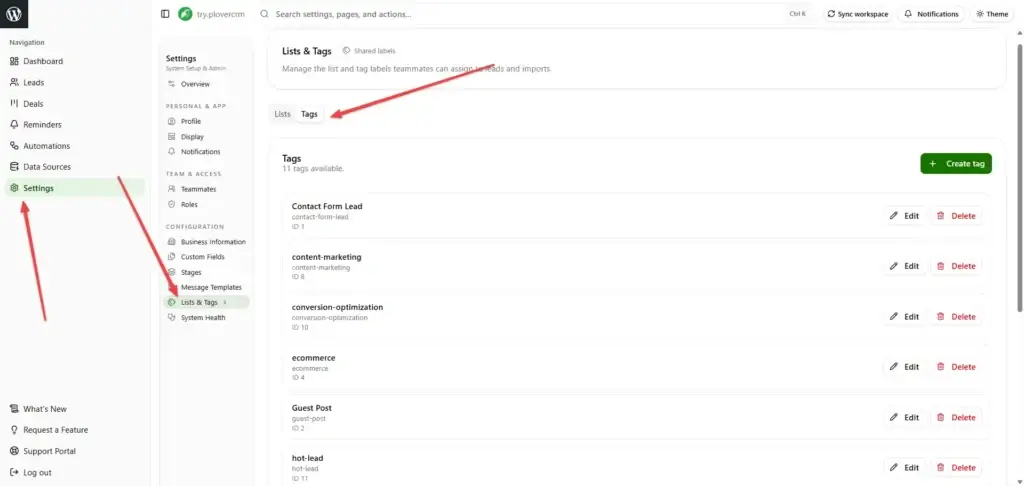
Before you begin #
- Sign in to the PloverCRM Web Dashboard.
- Select the workspace or connected website where you intend to work.
- Confirm that your role allows the screen and action described here.
- Prepare approved or fictional test data when the workflow changes records, sends messages, imports data, or triggers an automation.
- Finish or cancel unsaved edits before switching workspaces, refreshing, or leaving the page.
Steps #
- Sign in to the PloverCRM Web Dashboard and select the intended workspace.
- Open the Custom Fields, Lists, and Tags area from the left navigation.
- Locate the screen or control for Manage Tags.
- Review the current information before making a change.
- Enter or select the required values using the labels shown in your account.
- Review validation messages, access restrictions, and the effect on related records.
- Choose Save, Apply, Continue, or the matching control.
- Wait for confirmation and review the updated result.
What to verify #
After the final step, confirm:
- The workspace name and connected website still match the intended destination.
- The status, record, filter, setting, or result reflects the change you made.
- No unrelated lead, teammate, connection, message, or automation was changed.
- Any export, notification, file, or external action follows your organization’s privacy and retention policy.
PloverCRM should display a confirmation, updated status, or refreshed record. If the workflow is asynchronous, use its progress or log view instead of submitting the same request again.
Troubleshooting #
- If the screen or control is missing, confirm the workspace and ask an administrator to review your role.
- If results are empty or stale, clear filters, refresh once, and check workspace connection status.
- If a value is rejected, read the field-level message and use the required format.
- If an operation is processing, wait for its status or log entry before trying again.
- If the result is unexpected, stop before making another change and record the exact non-sensitive message, approximate time, browser, and reproduction steps.
Security and privacy: Never include passwords, one-time codes, API keys, connection tokens, private URLs, payment details, or identifiable customer data in screenshots, exports, notes, or support requests. Use approved support channels and redact diagnostic material before sharing it.


