Skip to content
PloverCRM logo PloverCRM
  • Home
  • Pricing
  • Documentation
  • Changelog
  • Account
Get PloverCRM Sign in
Sign in Get PloverCRM

Getting Started

9

Mobile App

50

Automations

7

Leads & Pipeline

30
  • Lead List & Filters
    • Understand the All Leads Screen
    • Filter Leads by List, Tag, Stage, or Date
    • Select and Rearrange Lead Columns
    • Refresh and Load Leads
    • Export Leads to CSV
    • Select Leads and Use Bulk Actions
    • Change Stage, Assignee, Lists, Tags, or Custom Fields in Bulk
    • Delete Leads in Bulk
    • Use Lead List Header Controls
    • Understand Rows per Page and Pagination
  • Add & Manage Leads
    • Open and Enter a New Lead
    • Add Lists, Tags, and Custom Fields
    • Assign a Lead to a Teammate
    • Set the Lead Stage and Value
    • Save a New Lead and Review Duplicates
  • Lead Details & Communication
    • Open and Navigate Leads in the Detail Drawer
    • Communicate, Share, and Add a Lead to Contacts
    • Review Tracking and IP Information
    • Understand Pipeline Stage and Value
    • View Custom Fields and Lead Metadata
    • Find and Merge Duplicate Leads in the Web Dashboard
    • Edit Lead Contact Details in the Web Dashboard
    • Delete Leads from the Web Dashboard
  • Activities & Reminders
    • Manage Lead Activities
    • Create and Manage Lead Reminders
    • Use Global Reminders and Browser Notifications
  • Deals & Pipeline
    • Understand Deals and Pipeline Stages
    • Enable or Disable the Experimental Deals Page
    • Use the Deals Workspace
    • Manage Pipeline Stages in the Web Dashboard

Integrations & Data

15

Settings & Customization

18

Team & Workspaces

11

Help & Troubleshooting

18
View Categories
  • Home
  • Docs
  • Leads & Pipeline
  • Lead Details & Communication

Edit Lead Contact Details in the Web Dashboard

< 1 min read

0:00 / 1:05
  • View as Markdown Open this page as plain Markdown (opens in a new tab)
  • Open in ChatGPT Ask questions about this page (opens in a new tab)
  • Open in Claude Ask questions about this page (opens in a new tab)
  • Open in Google AI Studio Ask questions about this page (Google account required) (opens in a new tab)

You can edit available lead details directly in the Lead Detail Drawer. The edit control appears when you hover over an editable detail.
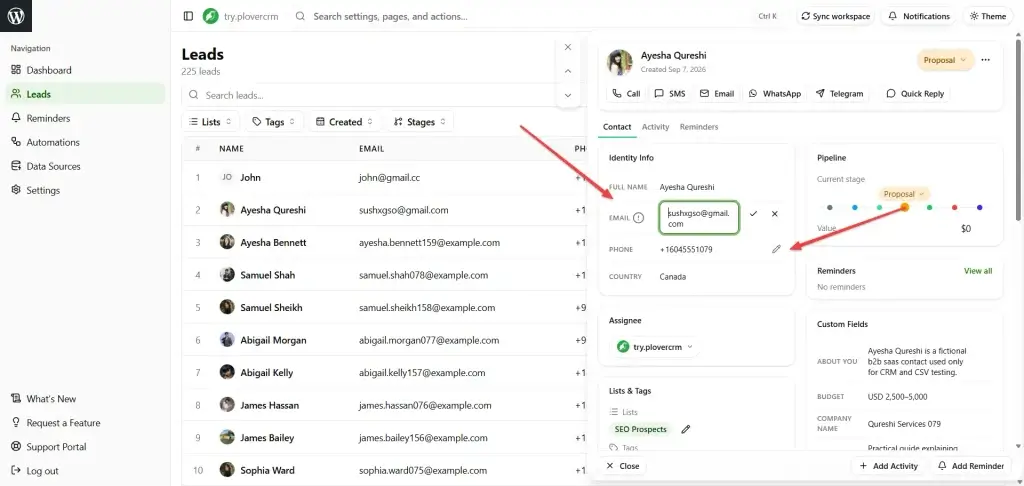
screenshot try.plovercrm.com 20261031 121449 - Plover CRM

Edit a lead detail #

  1. Open the lead in the Lead Detail Drawer.
  2. In the Contact tab, move the pointer over the detail you want to change.
  3. Select the pencil icon that appears.
  4. Enter the new value in the field.
  5. Select the checkmark to save the change, or select the X to cancel it.
  6. Repeat these steps for any other editable details.

In the example shown, the email address and phone number are being edited. The change is saved separately for each field.

Read-only details #

Some details do not show a pencil icon or cannot be edited. These fields are read-only because they are controlled by PloverCRM, the lead source, or your account permissions. You cannot change them from the drawer.

If an edit control is unavailable, do not try to change the field through another unrelated control. Contact a workspace administrator if you believe you should have permission to edit it.

Cancel an edit #

To discard a change before saving, select the X beside the field. The original value remains unchanged.

Updated on November 3, 2026
Custom Fields Lead Details Lead Editing Web

What are your Feelings

  • Happy
  • Normal
  • Sad

Share This Article :

  • Facebook
  • X
  • LinkedIn
  • Pinterest
Find and Merge Duplicate Leads in the Web DashboardDelete Leads from the Web Dashboard
Table of Contents
  • Edit a lead detail
  • Read-only details
  • Cancel an edit
PloverCRM

Plover CRM helps businesses manage leads, automate workflows, and strengthen customer relationships.

Get it on Google Play Download on the App Store

Quick Links

  • Documentation
  • Multi-Workspace Web App
  • Data Deletion Policy
  • Changelog
  • News and Articles
  • Terms of Service
  • Privacy Policy

Contact Support

Request FeaturePublic Roadmap Open TicketSupport Portal

Copyright © 2026 WebPlover - Developed by WebPlover