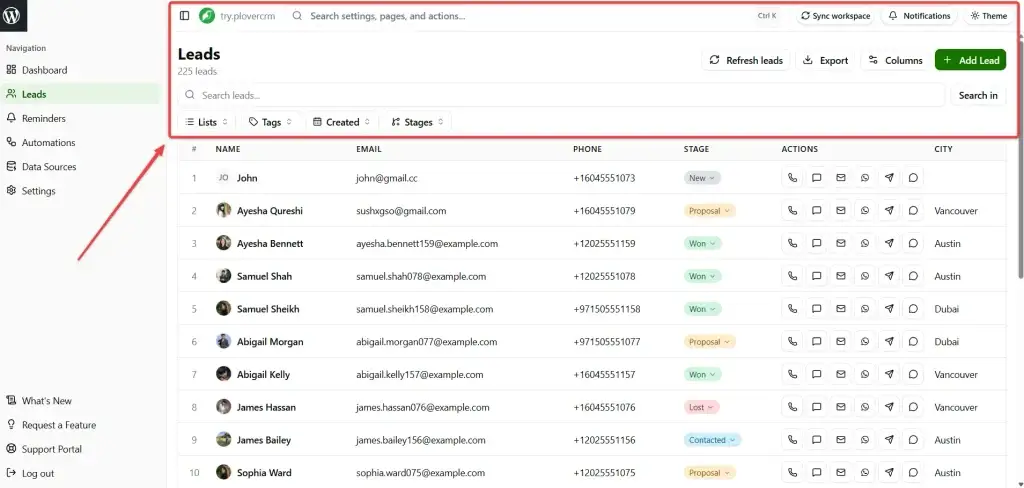
The Leads screen includes controls for refreshing the lead list, exporting leads, choosing visible columns, adding a lead, and searching for leads.
Available controls #
Refresh leads
Select Refresh leads to load the latest lead data.
Export
Select Export to export leads from the list. Follow the instructions shown for the export and review the selected records before downloading the file.
Columns
Select Columns to choose which lead fields appear in the table. Use this control to show or hide columns that are useful for your work.
Add Lead
Select Add Lead to open the form for creating a new lead. Enter the lead information and save it when you are ready.
Search leads
- Enter a name, email address, phone number, or other available lead information in Search leads.
- Select Search in if you need to choose where PloverCRM searches.
- Review the matching leads in the table.
Clear the search text to return to the unsearched list.
Filter and sort the list #
Use the controls below the search field to narrow or order the results:
- Lists filters leads by list.
- Tags filters leads by tag.
- Created sorts or filters by creation date.
- Email Verification filters by email-verification status.
- Stages filters by pipeline stage.
Select a control again to change or clear its selection.


